You put WhatsApp on your website with a button, a link or a QR code, or you add WhatsApp to the chat window you already have. Placing it takes a few minutes. The difference lies in what happens afterwards: who replies, how quickly, and whether the conversation on your website and on WhatsApp stays together. Below you will read how to add WhatsApp, how WhatsApp live chat differs from your website chat and how to use them together.
If you first want to know everything WhatsApp can do for business, see our overview of WhatsApp Business.
How do you put WhatsApp on your website?
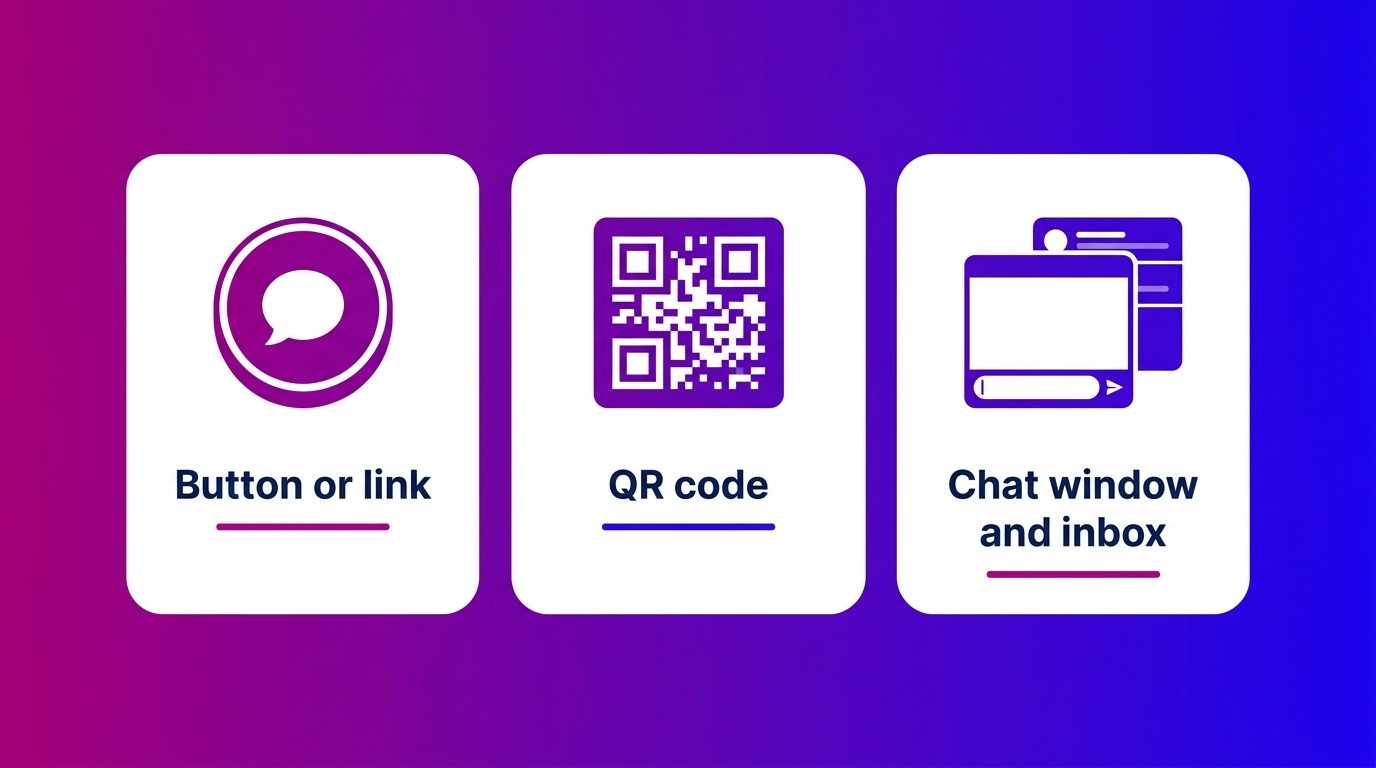
You put WhatsApp on your website in three ways: with a button or link that opens WhatsApp, with a QR code, or as a channel in your chat window and inbox. Which you choose depends on how many conversations you expect and who answers them.
- A button or link. One click opens WhatsApp with your number, often with a message already prepared. This is the fastest way and works on any website.
- A QR code. Handy on pages people view on a computer: they scan the code with their phone and carry on messaging from their mobile.
- WhatsApp in your chat window. WhatsApp sits alongside your website chat, and both come into the same inbox. That requires an integration via the WhatsApp Business API, but the team sees all conversations in one place.
How to make a WhatsApp button with a wa.me link
A WhatsApp button is nothing more than a link to wa.me with your phone number after it. This is how you make it:
- Write your number in international format, without the plus sign, spaces and the leading zero: 07700 900123 becomes 447700900123.
- Put it after wa.me/, so wa.me/447700900123.
- If you want a message to be ready, add ?text= with the text, replacing spaces with %20.
- Place the link behind a button or text link on your website.
If you use the WhatsApp Business app, you already have a short link. The app creates it automatically, and you can attach a default message to it (WhatsApp Help Center).
A tip that saves a lot: give every important page its own pre-filled message. “I have a question about the test drive” or “I would like a measuring appointment for windows” tells your team immediately where the visitor is coming from.
WhatsApp live chat or website chat: what is the difference?
A website chat belongs to the visit, WhatsApp belongs to the person. Most of the differences follow from that.
- Moment. Website chat is there while someone is on your site. If they close the tab, the conversation usually stops. On WhatsApp the conversation simply carries on, even hours later.
- Pace. In a website chat a visitor expects an answer within seconds. On WhatsApp an answer within a few minutes or later that day is normal.
- Content. On WhatsApp customers easily attach a photo, a voice message or a document. In a website chat it is more often about quick questions about what is on the page.
- Contact details. A WhatsApp conversation starts with a phone number. In a website chat you ask for those details yourself if you want to follow up.
WhatsApp live chat is therefore not a replacement for your website chat, but a different channel with its own rhythm.
Combining WhatsApp and live chat on your website
The strongest set-up gives visitors both: the website chat for anyone with a question now, WhatsApp for anyone who wants to carry on later. That way you do not lose the visitor when they leave the site.
This is how it works in practice:
- A visitor asks a question in the website chat about a car or a kitchen and gets an immediate answer.
- If they want to send a photo, or carry on later with their partner present, the conversation continues on WhatsApp.
- Outside the staffed hours they can leave a message via WhatsApp, which is picked up first thing the next morning.
If you work with a staffed chat function alongside WhatsApp, the same team answers both channels and the customer history stays together.
Bear in mind the 24-hour window. Within 24 hours after the customer’s last message you reply freely. After that you may only send pre-approved templates (Meta for Developers). How those templates work and what they cost is covered in the WhatsApp Business API.
What to arrange before the WhatsApp button goes live
Placing a WhatsApp button is simple, answering a WhatsApp button is the work. Arrange these four things in advance.
- Who replies. Agree who picks up the messages and from which device. If you work with a few colleagues, read how WhatsApp Business with multiple users works.
- When you reply. Put your availability next to the button or in an automatic message, so nobody sits waiting for an answer in the evening.
- Where the conversations land. If WhatsApp and the website chat come into different apps, you quickly lose the overview. One inbox prevents that.
- What you measure. Measure clicks on the button as a conversion in your analytics, and see which pages produce the most conversations.
The button brings in not only new customers, but also existing customers with a service question. How to handle those is covered in WhatsApp customer service.
What we see when visitors on your website choose WhatsApp
Visitors choose WhatsApp mainly when their question cannot be answered in one go. At Bconnect our chat specialists and AI answer the website chat and WhatsApp in one inbox, from 08:00 to 23:30, and we see that pattern again and again.
- In automotive, a conversation often starts in the website chat about a used car or a test drive. If it turns to part-exchange, the customer sends photos of their current car via WhatsApp, and that conversation sometimes runs for days.
- In home and living, it is photos of a window frame, a bathroom or a stairwell. A customer does not want to type those into a website chat, but on WhatsApp they send them without any trouble.
- A button without staffing backfires. If there is a WhatsApp button in the evening without anyone replying, the question is left lying until the next morning. By then the visitor has often already looked elsewhere.
What works is having both channels answered by the same people. The lead then goes with the whole conversation to the sales team, in the CRM or by email, regardless of whether it came in via the chat or via WhatsApp.
WhatsApp on your website only works when someone replies
Putting WhatsApp on your website is technically done in no time: a wa.me link, a short link from the app or a QR code is enough. You make the difference with what sits behind it. Combine WhatsApp live chat with your website chat, so visitors get an answer now and can carry on later. Agree who replies and when, and let both channels come into one inbox. Then a click on the button becomes a conversation, and a conversation an appointment.
Frequently asked questions about WhatsApp on your website
How do I put a WhatsApp button on my website?
Create a link to wa.me with your phone number in international format, for example wa.me/447700900123, and put that link behind a button on your website. With ?text= after the link you add a message that is already prepared.
Does a WhatsApp button on your website cost money?
A wa.me link or the short link from the WhatsApp Business app is free. Costs only arise when you connect WhatsApp via the WhatsApp Business API to an inbox or chat software, or when you send templates outside the 24-hour window.
Do I need the WhatsApp Business API for WhatsApp on my website?
Not for a button or link: that works with the ordinary app. You need the API if you want WhatsApp in your chat window or inbox, want to reply with several colleagues or want to connect conversations to your CRM.
What is the difference between WhatsApp and live chat?
Live chat on your website runs during the visit and usually stops when the visitor leaves the site. WhatsApp carries on on the customer’s phone, even later in the day, and makes it easy to send photos and documents.
Can you use WhatsApp and live chat at the same time?
Yes. Many businesses offer both: the website chat for quick questions during the visit and WhatsApp for conversations that carry on later. It works best when both channels come into one inbox.
Does a WhatsApp button work on a computer too?
Yes. On a computer the link opens WhatsApp Web or the desktop app if the visitor uses it. If you want to guide visitors on a computer to their phone, use a QR code.
How does the 24-hour window work in practice?
After every message from a customer you have 24 hours to reply freely. If the customer does not reply after that, you may only send pre-approved templates. Replying quickly therefore keeps the conversation open most easily.